How to use cell phone safety features to protect against thieves
Whether you have an iPhone or an Android, your device has multiple safety features you can activate to protect your kids and yourself, giving you peace of mind.
–
With families getting back to their back-to-school routines, protecting your cell phone devices is critical, especially if they end up in the wrong hands.
There are specific safety features you can Google for your particular phone to better protect yourself and your information.
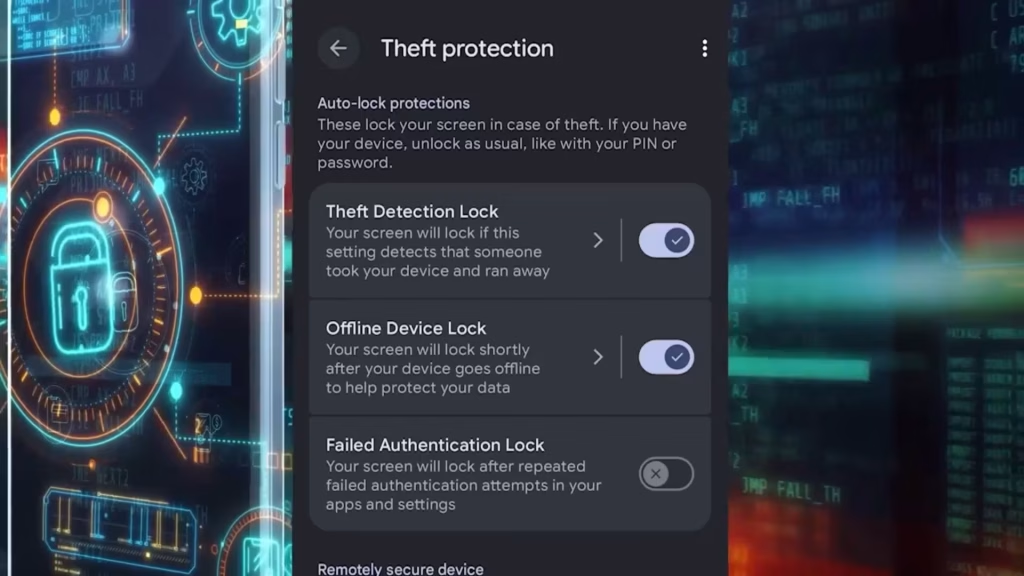
For example, if you have a Google Pixel Android device, you can activate the “Theft Detection Lock.”
Instructions:
-
Open your phone’s settings
-
Hit “Google Services” and select “All Services”
-
Open “Theft Protection” and toggle on “Theft Detection Lock”
That feature uses smart motion sensors and AI to detect if someone grabs your phone and runs, rides off on a bike or drives away; the screen will lock fast.
In this same section, you can turn on the “Offline Device Lock” feature, where your screen will lock shortly after your device goes offline to protect your data.
You can activate the “Failed Authentication Lock,” where your screen will lock after repeated failed authentication attempts in your apps and settings.
If you activate the “Remote Lock” that is in the same menu, and your device is stolen or lost, you can lock your screen from any device by entering your phone number at android.com/lock.
If your phone is stolen and someone gains access to your device, and you have an iPhone, you can lock your applications.
This is to protect your sensitive information that could give the wrong hands access to bank transfers, social media and other identity-related applications.
Instructions:
-
Tap and hold on the app’s icon
-
Select Require Passcode from the menu that pops up
-
Choose either Require Passcode or Hide and Require Passcode if you want to hide the app as well.
For more safety features, click on the phone link that applies to you.
About Post Author